Playing on your TV with your phone as the controller, without a console or a dedicated box, is simpler than it sounds. There are several ways to show a game on your screen, each with its advantages and limits. Here is what actually works.
The simplest solution: a laptop with HDMI
If you have a laptop or a desktop computer, this is the most direct option. Connect it to the TV with an HDMI cable, open a recent browser (Chrome, Safari, Firefox or Edge), go to the game's website, and you're in. Nothing to install, nothing to configure.
Advantages: no wireless lag, good picture quality, and full control over your computer.
Limits: you need an HDMI cable, which is cheap and easy to find. The computer stays plugged in near the TV for the whole game.
Picture quality depends on your computer and your cable. With a cable in good condition and a computer that isn't too old, you'll get the best results.
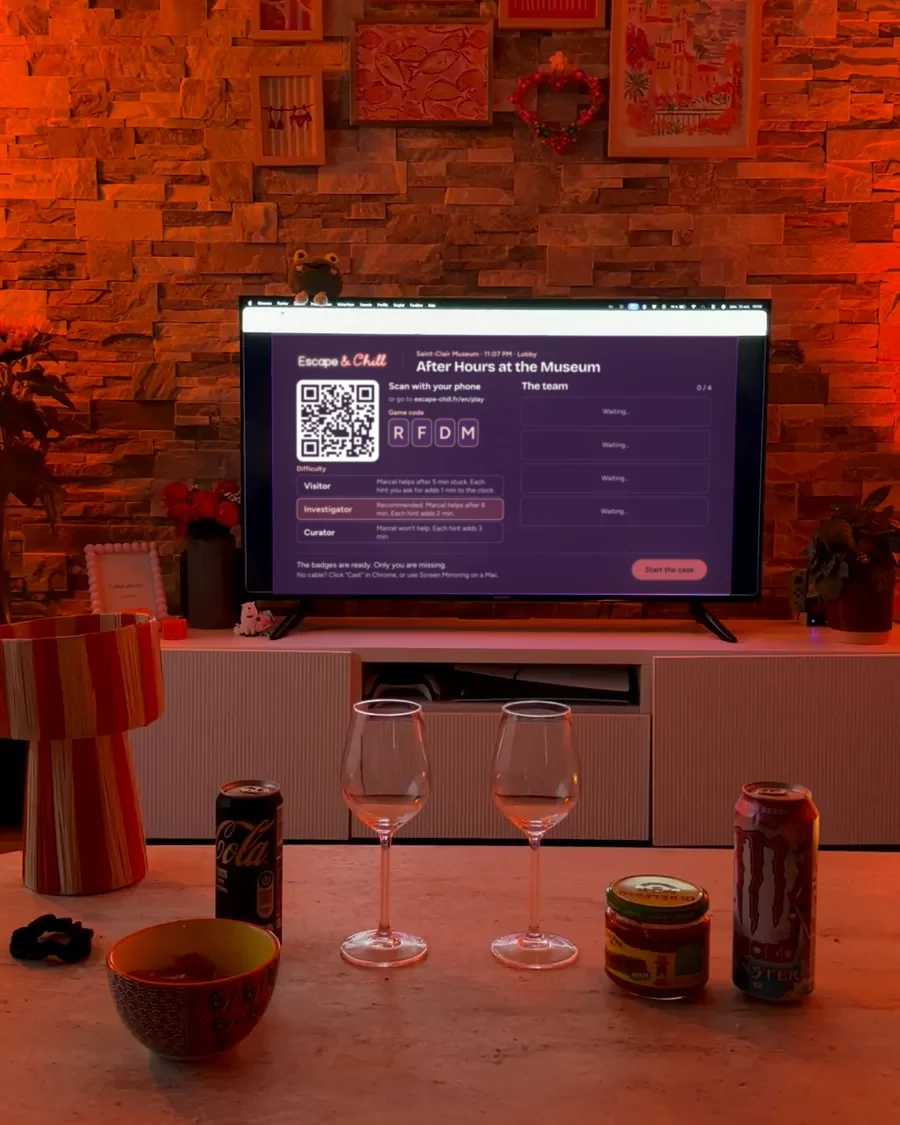
Smart TVs with a built-in browser
Many recent TVs include a browser in their system. Press the "Home" button, look for "Internet" or "Browser," and browse straight from the TV.
To check whether your TV has one, press the home button and look for a shortcut to a browser or to the internet. Otherwise, search online for your TV model followed by the word "browser."
Advantages: no cable, no extra device.
Limits: the built-in browser is often basic and can be slow. You usually don't get to choose the browser: it's the manufacturer's. Performance depends on how powerful the TV is, and TVs weren't designed for this. Some older models don't have a browser at all.
If the page loads too slowly or freezes, switch to one of the other solutions. A TV's built-in browser often struggles with 3D, so connect a computer or mirror a phone instead.
Screen mirroring: Chromecast and AirPlay, with limits
You can also mirror a device's screen to the TV wirelessly. The two main options are Chromecast (from the Chrome browser on a computer or from an Android phone) and AirPlay (from a Mac or an iPhone).
Chromecast: if your TV or streaming box supports it, open Chrome on your computer, choose "Cast..." from the menu, then select your TV.
AirPlay: if you have a Mac or an iPhone, connect to the same Wi-Fi network as your TV (an Apple TV or a compatible smart TV). Open screen mirroring, choose AirPlay, then select your TV.
One important point: in games where everyone uses their phone as a controller, your phone has to stay free. So mirror the screen of a computer, or of another phone that only serves as the display. That device runs the game, and the TV just shows it.
Advantages: no cable between the computer and the TV.
Important limits: a delay is often noticeable, which is normal with wireless mirroring. If the game needs quick reactions, it can be annoying. Picture quality is sometimes reduced. Sound plays through the TV, but if the original device also makes sound, you'll have two audio sources. And the connection can drop if the Wi-Fi isn't stable.
Tip: test it at the start. If the lag or quality bothers you, switch to an HDMI cable.
Just a phone
If you only have a phone, the question is whether you can do everything on it. For a video or a small game, yes. But for a group game where the phone is already the controller, you lose the shared screen that everyone watches together.
Advantages: you don't need anything else.
Limits: the screen is small and everyone has to lean over it. For a game like a TV escape game, plan on a computer at minimum: alone or in pairs, a laptop screen may be enough.
Playing on your TV with your phone: what works best
- You have a laptop: HDMI, without hesitation.
- You only have a smart TV and phones: mirror a recent phone that serves as the screen to the TV (AirPlay on iPhone, Smart View or Cast on Android), and the others act as controllers. The TV's built-in browser often struggles with 3D, so connect a computer or mirror a phone.
- You have a computer but no cable: Chromecast or AirPlay, knowing that some lag is possible.
- Your TV is old and has no browser: a computer connected by HDMI is still the safest choice.
- You're alone or in pairs: the computer alone may be enough, without going through the TV.
Summary: picture quality by method
| Method | Picture quality | Lag | Good to know |
|---|---|---|---|
| Computer via HDMI | Excellent | None from wireless | Needs a cable |
| Smart TV browser | Varies by model | None | Often too slow for 3D |
| Chromecast or AirPlay | Slightly compressed | Noticeable | Stable Wi-Fi is a must |
| Computer alone | Sharp | None | Smaller screen |
Checking your browser
The game needs a recent browser. What counts as "recent"? An up-to-date version of Chrome, Safari, Firefox or Edge works. Very old browsers (Internet Explorer, old versions of Safari) may cause problems.
Run a quick test: open a modern website on your computer. If it loads correctly, that's a good sign. If the page displays badly or doesn't open, your browser is probably too old.
To update it, open its settings (usually at the top right), then look for "About" or "Check for updates." It matters even more because recent games rely on modern web technology, like 3D in the browser.
To play remotely rather than in the same room, see our full guide: playing an escape room remotely with friends.
Internet and stability
Whichever method you use, you need a good internet connection. A stable Wi-Fi network is enough, you don't need fiber. A stable mobile connection can also work.
What we saw in testing. Several players first launched the game on their phone, then relaunched it from the computer connected to the TV: that's the right method. For wireless mirroring, see Apple's support page for AirPlay and Google's page for Chromecast. For more reading: escape games on the TV compared, how to host the evening, and playing remotely.
Test before you start
Before a real game, test your setup. Open a high-quality YouTube video on the device and with the method you've chosen. Check whether the video plays without interruptions, lag or pixelation. That gives you a good idea of how the game will look in practice.
Test the sound too. It should be clear, with no dropouts. With wireless mirroring, check that the sound and picture stay in sync: a slight gap goes unnoticed, but a clearly visible delay quickly becomes irritating during a game.
Ask a friend to test it in real conditions: you on your phone, them in front of the screen. You'll know whether the lag really bothers you or whether it's acceptable.
Final tips
An HDMI connection from a computer is the most reliable solution, with excellent picture quality and no compromises.
The TV's built-in browser often struggles with 3D. Connect a computer instead, or mirror a phone to the screen. Without a computer on hand, the mirrored phone is what runs the 3D.
Chromecast and AirPlay work, but test them before a real game to make sure the lag doesn't bother you.
If nothing works, an old laptop connected to the TV by HDMI is a reliable and long-lasting backup.
For other technical questions, see the FAQ. You can also read our guide on how to host an escape game at home to see all the gear you need, and how it works for the details of the game.